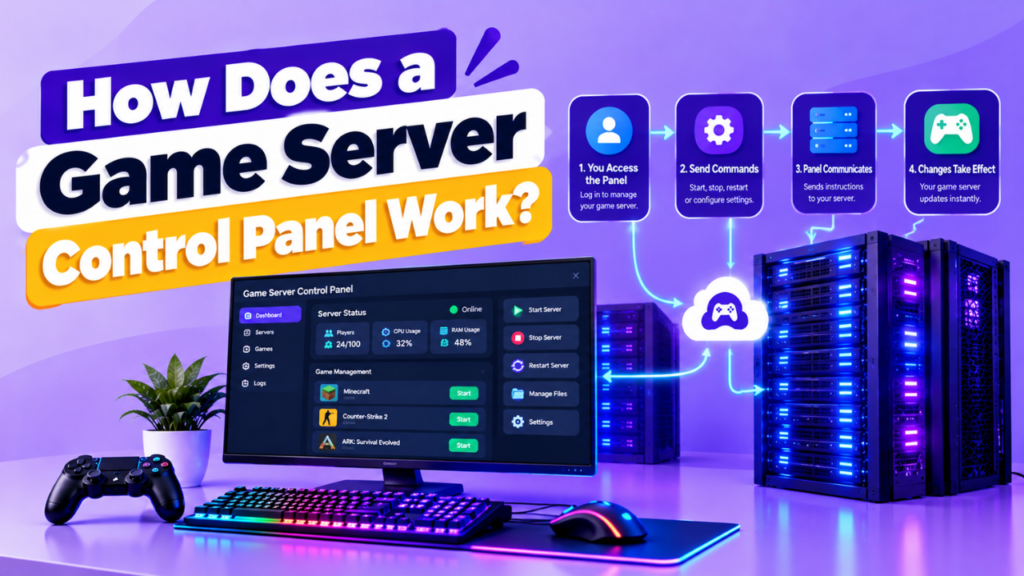
A game server control panel works as a web based interface between you and your game server. Instead of managing everything through command line tools, you can use buttons, menus, file managers, and console windows to control the server.
When you click an action such as Start, Stop, Restart, or Backup, the control panel sends that request to the server environment. The server then performs the requested action and sends the result back to the panel.
The basic process looks like this:
You → Web Browser → Control Panel → Server → Game Server
Let’s understand how this process works step by step.
How Does a Game Server Control Panel Work?
A control panel connects the management interface with the actual game server running on a VPS, dedicated server, or hosting infrastructure.
When you perform an action, the panel communicates with the server environment and tells it what to do.
For example, when you click Restart Server, the panel may:
- Receive your restart request.
- Authenticate your account and permissions.
- Send the restart command to the server environment.
- Stop the running game server process.
- Start the game server again.
- Display the new server status.
A simplified workflow looks like this:
User Action → Control Panel → Server Environment → Game Server → Response → Control Panel
The exact implementation depends on the control panel and hosting setup.
What Happens When You Start a Game Server?
Starting a game server involves more than simply clicking a button.
The control panel typically triggers the required server process and monitors whether it starts correctly.
Step 1: You Click Start
You select the game server from the control panel and click Start.
The panel receives your request and checks whether you have permission to perform the action.
Step 2: The Panel Checks the Server
Depending on the setup, the system may check available resources, server status, configuration, and required files.
If something important is missing or the server is already running, the panel may return an error instead of starting another process.
Step 3: The Game Server Process Starts
The panel starts the required game server software with its configured settings.
These settings can include:
- Server name
- Map or world
- Game mode
- Player limit
- Configuration files
- Startup parameters
- Plugins or mods
Step 4: Console Output Appears
As the server starts, messages generated by the game server are sent to the control panel.
You may see information about:
- Server startup
- Loaded configuration
- Plugins or mods
- Errors
- Player connections
- Server status
Step 5: The Server Becomes Available
Once the game server finishes starting successfully, the control panel can show it as online.
Players can then connect using the appropriate game client and server address.
How Does a Control Panel Manage Server Files?
Most game server control panels provide some form of file management interface.
Instead of connecting to the server separately for every file operation, you can manage supported files directly from the panel.
Common operations include:
- Upload files
- Download files
- Create folders
- Delete files
- Rename files
- Edit configuration files
- Manage permissions
For example, you may need to change a game configuration file.
The general process is:
Open File Manager → Find Configuration File → Edit Settings → Save Changes → Restart Server if Required
Not every configuration change requires a restart. It depends on the game and the setting being changed.
Why Is File Management Useful?
Game servers often depend on multiple files for configuration, worlds, plugins, mods, logs, and saved data.
A file manager gives you a simpler way to work with these files without relying entirely on command line tools.
However, you should avoid deleting or changing unfamiliar files without a backup.
How Does a Control Panel Monitor a Game Server?
A control panel can collect information about the server and display it through its dashboard.
This helps you understand whether the server is running normally or consuming too many resources.
| Monitoring | What It Shows |
| CPU Usage | Processor consumption |
| RAM Usage | Memory consumption |
| Storage | Disk space usage |
| Network | Network activity |
| Server Status | Online or offline state |
| Console | Server output and errors |
For example, consistently high RAM usage may indicate that the server needs more memory or that a plugin, mod, configuration, or workload needs investigation.
Resource monitoring does not automatically fix performance problems. It simply gives you useful information for troubleshooting.
How Does a Control Panel Handle Commands?
Many control panels provide a web-based console where you can enter commands without opening a separate terminal session.
The basic process is:
Command → Control Panel → Game Server Process → Result → Console
For example, you might use the console to:
- Change server settings
- Manage players
- Save the game world
- Restart services
- Run administrative commands
- Test server functionality
The exact commands depend on the game server software.
The control panel does not create these commands. It provides an interface through which the underlying game server can receive and execute supported commands.
How Does a Control Panel Handle Backups?
A control panel can simplify the process of backing up game server data.
Depending on the panel, you may be able to create backups manually or schedule them automatically.
A typical backup process looks like:
Backup Request → Panel → Game Server Files → Backup Storage
A backup may contain important data such as:
- World or map files
- Configuration files
- Plugins
- Mods
- Player data
- Server settings
Backup functionality varies between control panels and hosting providers.
For better protection, backups should ideally be stored separately from the main game server. Otherwise, a serious server failure could affect both the live data and its backup.
Is a Game Server Control Panel Always Connected to the Server?
The control panel needs a way to communicate with the server or the service managing the game server process.
Depending on the architecture, this communication can involve components such as:
- Server agents
- APIs
- Authentication systems
- Remote management services
- Hosting infrastructure
The exact architecture differs between control panels.
If the communication layer becomes unavailable, some panel functions may stop working even if the underlying game server is still running.
For example, the game server could remain online while the web dashboard temporarily becomes inaccessible.
This is why the control panel and the actual game server should be treated as separate components.
Does a Control Panel Improve Game Server Performance?
Not directly.
A control panel mainly makes server management easier. It does not automatically give the game server more CPU, RAM, bandwidth, or better network routing.
Performance depends on factors such as:
- CPU performance
- RAM capacity
- Storage speed
- Network quality
- Game server software
- Player count
- Plugins and mods
- Server configuration
A control panel can still help with troubleshooting because it gives you access to resource statistics, logs, console output, and configuration files.
What Happens When You Stop or Restart a Game Server?
When you click Stop, the control panel sends a stop request to the game server process.
The server then attempts to shut down properly.
When you select Restart, the general process is:
Restart Request → Stop Server → Close Process → Start Server → Load Configuration → Online
A proper restart can help apply configuration changes or recover from certain temporary issues.
However, restarting should not be treated as a permanent solution for recurring crashes, high resource usage, or configuration problems.
Can a Control Panel Manage Multiple Game Servers?
Some control panels allow you to manage multiple game server instances from one account or dashboard.
For example, you could potentially manage:
| Server | Purpose |
| Server 1 | Minecraft |
| Server 2 | Rust |
| Server 3 | Valheim |
| Server 4 | FiveM |
The exact number of servers and supported games depends on the control panel, hosting environment, and available hardware.
Managing multiple servers from one interface can make administration easier because you do not need a completely separate management workflow for every instance.
Is a Game Server Control Panel Secure?
A control panel can provide convenient server management, but it also becomes an important administrative entry point.
Anyone who gains unauthorized access to the panel may be able to control the game server.
Follow these basic security practices:
- Use a strong, unique password.
- Enable 2FA when available.
- Keep the control panel updated.
- Use HTTPS.
- Give users only the permissions they need.
- Restrict administrative access where possible.
- Secure the underlying server.
- Keep regular backups.
- Monitor login and server activity.
Security also depends on the underlying hosting environment and server configuration, not just the control panel itself.
FAQs
Does a game server control panel host the game server?
Not necessarily. A control panel is a management interface. The actual game server normally runs on infrastructure such as a VPS, dedicated server, or game hosting environment.
Can a control panel restart a game server?
Yes. Most game server control panels provide start, stop, and restart controls, although the exact options depend on the panel and game.
Can I manage game files through a control panel?
Yes. Many control panels include a file manager for uploading, editing, deleting, and organizing supported server files.
Does a control panel improve game server performance?
No. A control panel mainly improves server management. Performance depends on hardware, networking, configuration, game software, and workload.
Can a control panel monitor CPU and RAM?
Many control panels provide CPU and RAM usage information through their dashboard. The exact monitoring features vary between panels.
Can I manage multiple game servers from one control panel?
Some control panels support multiple game server instances, allowing administrators to manage several servers from one interface.
Can I run a game server without a control panel?
Yes. You can manage many game servers through command line tools, configuration files, and remote administration methods. A control panel simply provides a more convenient management interface.
Conclusion
A game server control panel works as a management layer between you and the underlying game server. It receives your actions, communicates with the server environment, and displays the resulting status or output.
From starting and restarting servers to managing files, running commands, monitoring resources, and creating backups, a control panel can simplify many routine administration tasks.
However, it does not replace the actual server hardware or improve performance automatically. Your CPU, RAM, storage, network, game configuration, and server software still determine how well the game server performs.
For most server owners, the biggest benefit of a control panel is simpler and more centralized server management.
Pingback: How Does Game Server Location Affect Ping in Online Gaming?