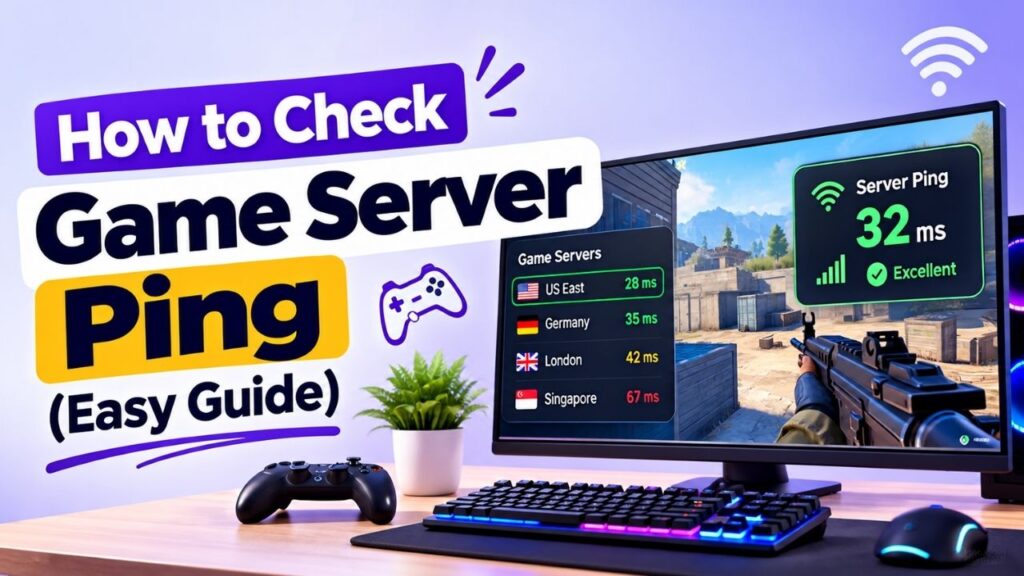
A high ping can make an online game feel slow even when your computer is running perfectly. Before changing your internet plan, moving to another server, or blaming the game server, it helps to measure the actual connection between your device and the server.
Checking game server ping is simple. You can use the game’s built in network statistics, the Windows Command Prompt, or Linux terminal commands, depending on what information the game provides.
This guide explains how to check game server ping step by step, how to read the result, compare different servers, and understand why the number may change during different tests.
Table of Contents
What You Need Before Checking Ping
You need the address of the game server you want to test. Depending on the game, this may be an IP address, hostname, or server address shown in the server browser.
For example, a server might provide information similar to:
Server IP: 203.0.113.25
Server Port: 27015
For a basic ping test, the IP address or hostname is normally the important part. The game port is used by the game service, but the standard operating system ping command uses ICMP rather than the game’s TCP or UDP port.
It is also useful to close unnecessary downloads, streams, or other heavy network activity before testing. This gives you a cleaner view of the connection under normal conditions.
Step 1: Find the Game Server IP or Hostname
Start by identifying the exact server you want to test.
You may find the server address in:
- The game’s server browser
- Your hosting control panel
- The game’s server configuration
- A server list
- Documentation from the server owner
- The connection details provided by your game hosting provider
Some games display only a server name or region instead of a direct IP address. In that situation, the game’s own network statistics or server browser may be more useful than a standard operating system ping test.
Make sure you are testing the same server you actually intend to play on. Testing a provider’s website, control panel, or another IP does not necessarily tell you the latency to your game server.
Step 2: Check Ping on Windows
Windows includes a built in ping command, so you do not need additional software for a basic test.
Open Command Prompt
Press: Windows + R
Type: cmd
Then press Enter.
You can also search for Command Prompt from the Windows Start menu.
Run the Ping Command
Enter the following command:
ping SERVER-IP
Replace SERVER-IP with the actual address of your game server.
For example: ping 203.0.113.25
Windows will send several ICMP echo requests and display the responses it receives.
A typical result may look like:
Reply from 203.0.113.25: bytes=32 time=42ms TTL=52
Reply from 203.0.113.25: bytes=32 time=40ms TTL=52
Reply from 203.0.113.25: bytes=32 time=43ms TTL=52
Reply from 203.0.113.25: bytes=32 time=41ms TTL=52
The important value here is the time, shown in milliseconds.
Windows also provides a summary showing the minimum, maximum, and average response time.
Use a Continuous Ping Test
For a longer observation, you can use:
ping SERVER-IP -t
For example: ping 203.0.113.25 -t
This keeps sending requests until you stop it with: Ctrl + C
A continuous test can help you notice whether the response time stays relatively stable or changes significantly over time.
Do not confuse a continuous ICMP test with the exact metric used by every game. The game’s networking system may measure and report connection performance differently.
Step 3: Check Ping on Linux
Linux distributions generally include the ping utility.
Open a terminal and run: ping SERVER-IP
For example: ping 203.0.113.25
The terminal will display responses with a time value in milliseconds.
To stop the test, press: Ctrl + C
Linux will then provide a summary of the packets transmitted and received, along with response time statistics.
You can also limit the number of requests: ping -c 4 SERVER-IP
The -c 4 option tells the command to send four requests and then stop.
This is useful for a quick comparison between multiple game servers.
Step 4: Check Ping Inside the Game
For many players, the easiest method is the game’s own network display.
Different games provide different options. Depending on the title, you may find ping information in:
- Server browser
- Scoreboard
- Network statistics
- Performance overlay
- Connection information
- Developer or diagnostic console
Some games display ping next to each player’s name, while others show network statistics through a dedicated overlay.
This method has one major advantage: you are measuring the connection from the actual game client to the game’s networking environment.
That can make the in game value more relevant to gameplay than a generic test to an unrelated server.
However, the number shown by the game may not be directly comparable with the result from a standard ping command because the underlying measurement method can differ.
Step 5: Read and Understand the Ping Result
A ping result is normally shown in milliseconds (ms).
For example:
Minimum = 38ms
Maximum = 45ms
Average = 41ms
The average gives you a general idea of the response time observed during the test.
The minimum and maximum values show how much the response time changed during those requests.
A simple reference is:
| Ping | General Interpretation |
| Under 20 ms | Very low |
| 20 to 50 ms | Low |
| 50 to 100 ms | Generally reasonable |
| 100 to 150 ms | Noticeable delay may occur |
| Above 150 ms | Delay can become more noticeable |
These are practical reference ranges rather than strict gaming standards. The acceptable value depends on the game, network conditions, server location, and the type of gameplay involved.
More importantly, do not judge a connection from one response alone.
For example:
41 ms
42 ms
40 ms
43 ms
41 ms
shows a relatively consistent result.
Compare that with:
39 ms
42 ms
95 ms
48 ms
130 ms
The second set shows much greater variation. Even though some individual readings are low, the connection is less consistent during the test.
Step 6: Compare Ping Across Game Servers
Testing multiple servers can help you identify which locations provide a shorter network path from your connection.
Suppose you test three available servers:
| Server | Average Ping |
| India | 32 ms |
| Singapore | 61 ms |
| Germany | 139 ms |
The numbers show that your connection currently has a shorter response time to the India server than to the other two locations.
This does not mean the server with the lowest ping will always provide the best overall gaming experience. Server capacity, routing stability, packet loss, game performance, and other factors can also matter.
Still, ping comparison is useful when deciding between several geographically different game servers.
For multiplayer communities, testing from the locations of the actual players is even more useful. A server that performs well for one region may not provide the same result for players located elsewhere.
What Can Affect Your Ping Test?
Your ping result can change because of conditions on both your side and the wider network.
1. Server Location
A server located closer to you often has a shorter network path, although geographical distance is not the only factor involved.
2. Network Routing
Internet traffic can travel through different networks and routers before reaching the destination. Routing differences can affect the final response time.
3. Local Network Activity
Large downloads, cloud synchronization, video streaming, or other devices using the same connection can influence network conditions during testing.
4. Wi-Fi Conditions
Wireless interference, signal strength, congestion, and the distance between your device and router can affect network consistency.
5. ISP Network Conditions
Your internet service provider’s network and its route toward the game server can influence the measured response time.
6. Server Side Conditions
A busy or poorly performing game server can create gameplay problems, although server processing delays should not automatically be treated as network ping.
This distinction is important because a ping command primarily measures network response to the destination. It does not provide a complete measurement of the game’s CPU usage, tick rate, RAM usage, or overall server performance.
Why Ping Results Can Change
It is normal for ping to move slightly during repeated tests.
For example, a server might respond at:
38 ms
40 ms
42 ms
39 ms
41 ms
Small variations like these are common.
Larger changes deserve more attention:
40 ms
43 ms
87 ms
156 ms
51 ms
A result like this suggests that network conditions were not consistent during the test.
Several factors can contribute to changing results, including network congestion, Wi-Fi interference, routing changes, background traffic, or temporary conditions between your ISP and the server.
For a more useful measurement, run several requests instead of relying on a single result.
You can also test at different times of day if you are investigating a recurring issue. This can reveal whether the connection behaves differently during periods of heavier network usage.
Common Game Server Ping Testing Mistakes
Testing the Wrong IP
A common mistake is testing an IP that belongs to the hosting company’s website, control panel, or another service instead of the actual game server.
Always verify the destination before interpreting the result.
Focusing on One Ping Response
One response does not tell you much about connection consistency. Use several requests and look at the overall pattern.
Assuming More Bandwidth Means Lower Ping
Bandwidth and latency are different network characteristics. A faster internet package does not automatically reduce the physical distance or routing delay to a particular game server.
Treating Ping as the Entire Performance Picture
A low ping does not guarantee that the game server itself is performing perfectly.
CPU limitations, insufficient RAM, server side processing, tick rate, packet loss, and other factors can affect gameplay separately.
Comparing Different Test Methods Without Context
A Windows ping command, an in game ping display, and a third party testing tool may use different measurement methods.
Their numbers should not always be expected to match exactly.
FAQs
What is the easiest way to check game server ping?
The easiest method is usually the game’s built in network display if it provides one. On Windows, you can also open Command Prompt and use ping followed by the server’s IP address.
Can I check game server ping without joining the game?
Often, yes. If you know the server’s IP address or hostname and the server responds to ICMP requests, you can perform a basic ping test from your operating system.
Why does my game show a different ping than Command Prompt?
The game and operating system may use different networking methods or destinations for their measurements. The in game value can therefore differ from a standard ICMP ping result.
Is 50 ms ping good for gaming?
Around 50 ms is generally considered a relatively low network delay and is suitable for many online games. The practical experience still depends on the game and the stability of the connection.
How many times should I run a ping test?
A single test can provide a basic indication, but several requests give a more useful picture. Looking at the average and variation helps you understand consistency rather than relying on one response.
Does ping tell me if a game server is good?
No. Ping only provides information about network response time. A complete assessment should also consider server performance, stability, packet loss, hardware resources, uptime, and other relevant factors.
Conclusion
Checking game server ping is a simple way to understand the network response between your device and a game server. You can use the game’s built in network statistics, Windows Command Prompt, or Linux terminal depending on the information and tools available.
For a reliable assessment, test the correct server address, send multiple requests, and pay attention to both the average response time and how much it changes. Comparing several server locations can also help identify a more suitable region for your players.
Remember that ping is only one part of the gaming experience. A low number does not automatically guarantee strong server performance, while a failed ICMP test does not necessarily mean the game server is unavailable. Use ping as one useful measurement alongside the other factors that influence multiplayer performance.