Playing a multiplayer game with friends is easy when everyone joins the same online session. But behind that session, a server handles the shared game world, player connections, game rules, and saved data.
Game server hosting provides the infrastructure needed to run that server online. Instead of keeping everything on your personal computer, you can run the game server software on a remote machine and allow other players to connect to it.
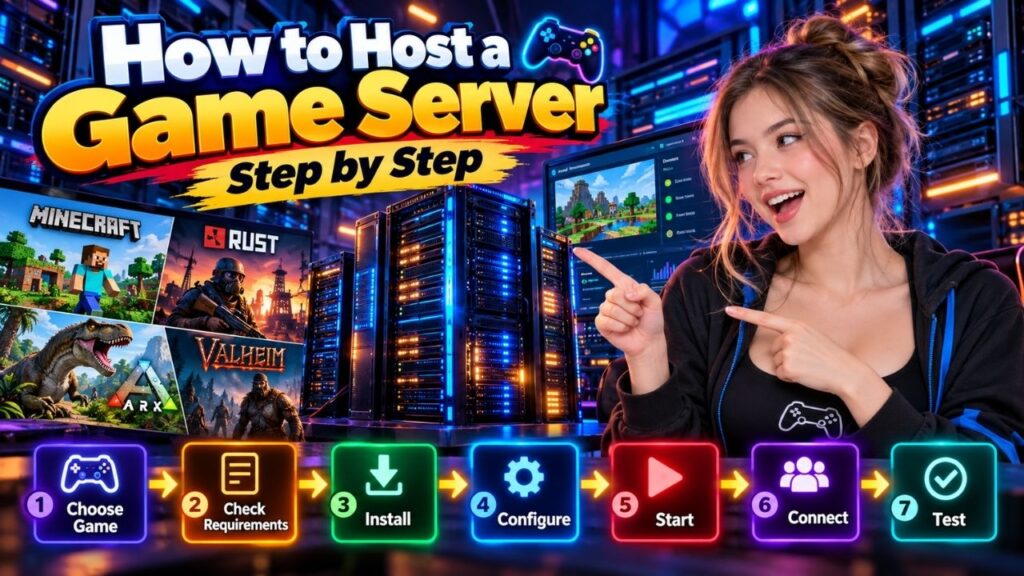
The setup is usually straightforward once you know what the game requires. You need to choose the game, check its server requirements, select where to host it, install the server software, configure the settings, start the server, and test the connection.
This guide walks you through the complete process so you can set up a game server and get it ready for other players.
Table of Contents
Step 1: Choose the Game You Want to Host
Start with the game you want your group to play. This decision affects the server software, hardware requirements, operating system, configuration, and hosting method you will need later.
First, check whether the game supports a dedicated or privately hosted server. Some games provide official dedicated server software, while others have their own method for creating private multiplayer servers.
You should check these details before setting anything up:
- Supported server software
- Supported game version
- Operating system requirements
- CPU, RAM, and storage requirements
- Network requirements
- Mod or plugin support
- Server configuration options
For example, hosting a Minecraft server is different from hosting a Rust or Valheim server because each game uses its own server software, configuration files, startup process, and update method.
You should also decide whether you want a vanilla server or a modded setup. A vanilla server keeps the initial configuration simpler, while mods or plugins can add new features but may require additional files and compatibility checks.
Once you know exactly what the game needs, choosing the right hosting environment becomes much easier.
Step 2: Choose Where to Host the Server
A game server can run on your own computer or on a remote server. The best option depends on the number of players, how long you want the server online, how much control you need, and how comfortable you are with server management.
| Hosting Method | Suitable For | Main Consideration |
| Your Own PC | Small private sessions | PC needs to stay online |
| VPS | Small to medium servers | Requires server management |
| Game Hosting | Easier server setup | Less infrastructure control |
| Dedicated Server | Larger communities | More resources and management |
Host the Server on Your Own PC
Running a server on your own computer can work well for a small group of friends or temporary sessions.
Your computer needs to remain powered on and connected to the internet while other players are using the server. You also need enough available resources for the server and, if applicable, your own game client.
Your home network can also affect whether players outside your network can connect. Depending on the game and network setup, additional router or firewall configuration may be required.
Use a VPS
A VPS provides a remote virtual server where compatible game server software can run continuously.
This means your personal computer does not need to remain online. You can access the server remotely and manage the game server from the VPS.
The trade off is that you are generally responsible for more of the administration, including the operating system, server software, configuration, updates, and troubleshooting.
Use Game Server Hosting
Game server hosting is built specifically for multiplayer game servers. Many providers offer a control panel that lets you deploy a supported game, manage files, change settings, start or stop the server, and perform common administrative tasks.
This can be a practical option when you want to spend more time playing and less time managing the underlying server environment.
Use a Dedicated Server
A dedicated server provides an entire physical machine for your server rather than sharing the physical hardware with other virtual machines.
This can be useful for larger communities or demanding workloads where consistent access to dedicated hardware is important. However, it generally involves more resources and greater responsibility for server administration.
The important point is to match the hosting method to your actual requirements rather than choosing based only on the available hardware.
Step 3: Check the Server Requirements
Before installing anything, check the requirements for the exact game and server version you plan to run.
Pay attention to:
- CPU requirements
- RAM requirements
- Storage requirements
- Operating system support
- Network requirements
- Required server software
- Additional dependencies
Do not assume that one hardware configuration will work for every game. Resource usage can vary based on the game itself, number of players, world size, server settings, mods, and plugins.
Also leave some room beyond the minimum requirement. A server that starts successfully with almost all resources already in use may struggle when more players join or the game world becomes more active.
Once the requirements are confirmed, prepare the machine or hosting account you selected.
Step 4: Prepare the Server
Now prepare the environment where the game server will run.
If you are using a game hosting provider, much of this preparation may already be handled for you. With a VPS or dedicated server, you may need to prepare the operating system and install the software required by the game.
Create a dedicated directory for the game server files. Keeping the server files together makes configuration, updates, backups, and troubleshooting easier.
Before continuing, make sure you have:
- Access to the server
- Enough available storage
- A supported operating system
- Required dependencies
- The correct game server files
- Administrative access where required
Avoid mixing files from different server versions. Using the wrong version can cause startup failures or compatibility problems.
Step 5: Install the Game Server Software
Download the server software or server files from the official source provided for your game whenever possible.
The exact installation process differs from one game to another, but the general workflow is similar:
- Download the correct server package.
- Place the files in the server directory.
- Install any required dependencies.
- Run the server for the first time.
- Review the generated files and configuration.
- Accept any required license or usage terms.
- Stop the server if initial configuration needs to be completed first.
The first startup may create configuration files, world data, logs, or other directories that the server needs for future launches.
Do not copy installation commands from another game simply because the process looks similar. Game server software can have different dependencies, file structures, startup commands, and configuration requirements.
Step 6: Configure the Server Settings
After the server software is installed, configure the settings according to how you want your multiplayer session to work.
Common settings include:
| Setting | What It Controls |
| Server Name | How players identify the server |
| Maximum Players | Number of simultaneous players |
| Game Mode | Gameplay rules or mode |
| Password | Who can join the server |
| Map or World | Game environment |
| Difficulty | Game challenge level |
| Admin Access | Server management permissions |
The exact settings available depend on the game.
Start with the basic configuration rather than changing everything at once. This makes it easier to identify which setting caused a problem if the server does not behave as expected.
If you are running a private server for friends, you may want to configure a recognizable server name and restrict access with the options supported by the game.
For a public server, review administrative and access settings carefully before sharing the connection details.
Step 7: Start the Game Server
Once the configuration is ready, start the server.
Watch the server console or management panel while it launches. A successful startup should normally show that the server has loaded its required files and is ready to accept connections.
Do not assume the server is ready just because the process starts.
Look for obvious errors, failed dependencies, missing files, or configuration problems. If the server stops immediately after launch, the console output or log files are often the first place to look.
At this stage, you want to confirm two things:
The server process is running, and the game server is ready for players.
These are related but not always the same thing.
Step 8: Connect to the Game Server
Once the server is running, connect to it using the method supported by the game.
Depending on the game, players may connect through a server browser, direct IP address, hostname, or another connection method.
Before inviting everyone, test the connection yourself.
Check that:
- The server appears correctly
- The game version matches
- You can join successfully
- The correct world or map loads
- Your configured settings are active
- The player can move and interact normally
Some games require a specific network port for incoming connections. If players outside your local network cannot connect, check the game’s networking requirements and your server or router configuration.
Do not start changing several network settings at once. First confirm the server is running correctly, then check the connection path step by step.
Step 9: Test the Server With Another Player
A server that works for the host may still have connection problems for external players.
Ask one friend to join before sharing the server details with everyone.
Run a simple test:
| Test | What to Check |
| Connection | Can the player join? |
| Authentication | Can the player enter normally? |
| World | Does the correct world load? |
| Gameplay | Can players interact? |
| Settings | Are the selected rules active? |
| Stability | Does the server remain online? |
Play for a few minutes rather than leaving immediately after joining.
This gives you a chance to notice problems such as unexpected disconnects, configuration mistakes, missing files, or compatibility issues before more players arrive.
Common Problems When Hosting a Game Server
Even a correctly planned setup can run into problems during the first launch. Most issues become easier to diagnose when you check one thing at a time.
The Server Does Not Start
Check the server console or log files for error messages.
Common causes include:
- Missing dependencies
- Incorrect server version
- Invalid configuration
- Missing or damaged files
- Insufficient system resources
- Unsupported software
Start by fixing the first clear error rather than changing several settings simultaneously.
Players Cannot Join
First confirm that the server is actually running and ready.
Then check:
- Server IP or hostname
- Required port
- Game version
- Server visibility
- Firewall or network configuration
- Password or access settings
If local players can connect but external players cannot, the issue is more likely related to the network path or external access configuration.
The Server Crashes
Look at the server logs around the time of the crash.
A crash can be related to incompatible mods, incorrect settings, missing dependencies, software problems, or resource limitations. The exact cause depends on the game and the server environment.
Avoid randomly increasing resources or changing multiple configuration values without checking the logs first.
Players Get Disconnected
Check whether the problem affects one player or everyone.
If only one player is affected, their local connection or game client may be involved. If several players disconnect at the same time, investigate the server and network side.
Also confirm that everyone is using the expected game version and compatible server content.
Game Server Hosting Checklist
Before inviting your full player group, run through this checklist:
- Game selected
- Server requirements checked
- Hosting method selected
- Server prepared
- Server software installed
- Correct game version confirmed
- Server settings configured
- Server started successfully
- Connection tested
- Another player tested
- Basic maintenance plan prepared
Once these checks are complete, your server is ready for regular use.
FAQs
Can I host a game server on my PC?
Yes, when the game supports self hosting and your computer and internet connection meet its requirements. Your PC generally needs to remain online while other players are using the server.
Can I host a game server on a VPS?
Yes. A VPS can run compatible game server software, provided the VPS meets the game’s requirements and allows the necessary server configuration.
Do I need a public IP to host a game server?
Not always. The requirement depends on the game, hosting method, and how players connect. Some hosting environments provide the necessary public network access without requiring you to manage a home connection.
Can I host a game server for free?
Sometimes. You may be able to host a server on your own computer without paying for separate server hosting, but you still need suitable hardware, internet access, and electricity. Free hosting services may also have resource or usage limitations.
Why can’t my friends join my game server?
Check that the server is running, the game versions match, the connection details are correct, and the required network access is configured correctly. If you can join locally but your friends cannot connect remotely, investigate the external network configuration.
How many players can a game server handle?
There is no single number that applies to every game server. The practical player capacity depends on the game, server software, available resources, world or map, configuration, and workload generated by players.
Conclusion
Hosting a game server becomes much easier when you treat it as a series of small steps instead of trying to configure everything at once.
Start by checking whether your chosen game supports the type of server you want to run. Then select a suitable hosting environment, verify the requirements, install the correct server software, configure the basic settings, and start the server.
Before inviting everyone, test the connection with another player and check the server logs for obvious problems. Once the basic setup works, you can move on to more advanced areas such as performance monitoring, backups, security, mods, plugins, and server management.
The goal is simple: get a stable server running first, then improve it as your player base and requirements grow.